How to Verify Your Company in the EU DPP Registry
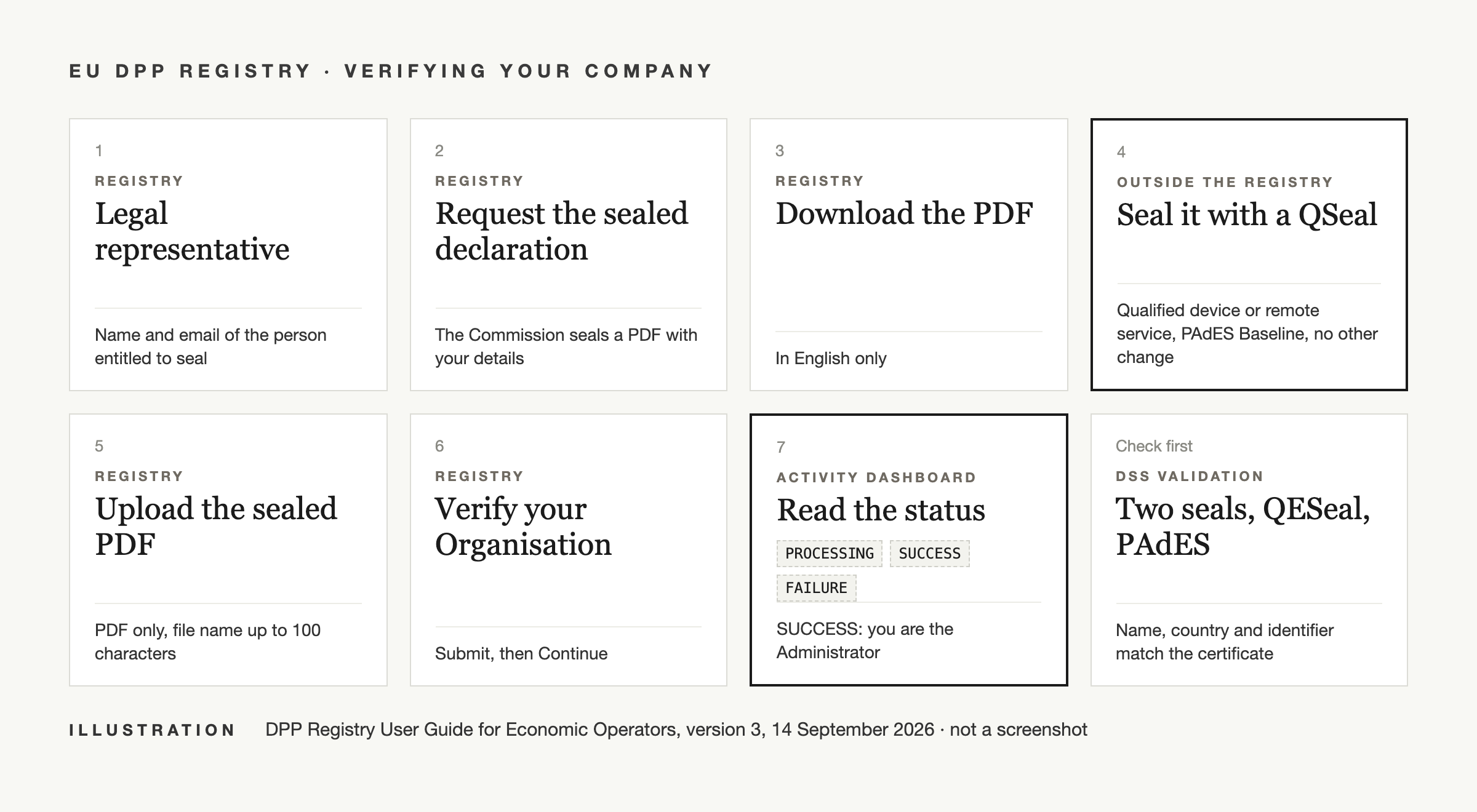
To verify your company in the EU DPP Registry, you enrol the organisation with EU Login, request a PDF declaration that the European Commission seals, seal it with your company's qualified electronic seal and upload it. The economic operator does this itself: a legal person, such as a company, uses a qualified electronic seal (QSeal); a natural person acting in their own name as a sole trader uses a qualified electronic signature (QES). You need an EU Login account, the company's details exactly as in the business register and the seal certificate, a qualified seal on a qualified device (smart card or USB token) or in a qualified remote signing service, and a legal representative entitled to seal for the company. Only a verified organisation can register digital product passports.
The steps and names below follow the Commission's DPP Registry User Guide for Economic Operators, version 3, dated 14 September 2026 on the Commission's DPP resources and documentation page. The Registry itself went live on 20 July 2026 (the Registry's launch); its rules are in Commission Implementing Regulation (EU) 2026/1778.
What verification is
Enrolment is how you show the Commission that you have the right to represent the economic operator you enrol. Your organisation's details are locked in a PDF declaration that the Commission seals. Your legal representative counterseals that PDF offline with a qualified seal from a qualified trust service provider (QTSP) and uploads it. The Registry checks the file, both seals, their certificates and the details they hold. If every check passes, the organisation is verified; if one fails, the application is rejected and you can correct it and submit again.
Under Regulation (EU) 2024/1781 (ESPR) only verified economic operators can register and manage passports (the six economic operators).
What you need before you start
| You need | Why |
|---|---|
| An EU Login account | The Registry signs you in through EU Login. Create one from the EU Login sign-in page if you have none. |
| The company's legal name, legal address and country of registration | The legal (registered) name, not a trading name, and the address on the company's registration, not a mailing address. |
| One company identifier | NTR (national trade register number, preferred), LEI, VAT, eID or a local definition with a two-letter country prefix. |
| A qualified electronic seal | Issued to the company by a QTSP, on a qualified device or in a qualified remote signing service. |
| A legal representative | The person legally entitled to seal or sign the declaration for the company. |
| Compliance contact details | An email and a phone number authorities can use about registrations and product compliance. They are not shown publicly. |
Check the seal certificate before you fill in the form. The guide asks for three values to match the certificate's Subject exactly:
| In the form | In the certificate | OID |
|---|---|---|
| Legal Name | organizationName (O) | 2.5.4.10 |
| Country of Registration | countryName (C) | 2.5.4.6 |
| Identifier | organizationIdentifier | 2.5.4.97 |
The identifier must match the certificate attribute in full, not in part. If you are not sure which identifier your certificate holds, the guide's advice is to ask the QTSP that issued the seal.
Enrol your organisation
- Sign in at registry.product-passport.ec.europa.eu with EU Login. The Welcome page opens.
- Click Enrol New Organisation. The Organisation Information page opens.
- Select the organisation type: Legal Person for a company or other legal entity, Natural Person for an individual acting in their own name. Changing the type later clears the form.
- Fill in the legal name, legal address, country of registration, identifier type and identifier, and the compliance contact. Fields marked with a red asterisk are mandatory.
- Click Save, then Start Verification.
If you stop halfway, the Registry shows the last page you completed when you return.
The seven verification steps
Step 1. Provide Legal Representative's Information
Enter the first name, last name and email of the person in your organisation who is legally entitled to seal or sign the PDF declaration.
Step 2. Request Sealed PDF Declaration
Click Request Declaration, then Continue. The Registry generates a PDF declaration with your organisation's details and the Commission seals it. Changing the organisation details after this point restarts verification.
Step 3. Download the PDF Declaration
When the PDF is ready, Download PDF becomes available. The declaration is only in English. If generation fails because the sealing service was briefly unavailable, the request shows as failed in the Activity Dashboard; request a new declaration.
Step 4. Sign or Seal the PDF Declaration
This step happens outside the Registry. The legal representative seals the Commission-sealed PDF with the organisation's qualified electronic seal. The guide sets three conditions:
- Qualified, on a qualified device. A qualified certificate alone is not enough. It must sit on a qualified signature creation device, a smart card or USB token from your QTSP, or in a qualified remote signing service run by a QTSP. A qualified certificate installed as a software file (.p12 or .pfx) gives only an advanced seal (AdES/QC), and verification rejects it.
- PAdES. The seal must be embedded in the PDF as PAdES Baseline B, T, LT or LTA. Other formats and signature containers are not accepted.
- No other change. Add your seal and nothing else. According to the guide, any other change to the file invalidates the declaration.
Acrobat may default to a format that is not PAdES-compliant, and such a declaration is rejected even with a valid certificate. Before sealing, open Preferences, Signatures, Creation & Appearance, More…, and set the Default Signing Format to CAdES-Equivalent. Alternatively, the Commission's free DSS Standalone Application signs locally; choose PAdES and a PAdES-BASELINE level.
Then click Continue in the Registry.
Step 5. Upload the signed/sealed PDF Declaration
Click Choose File or drag the PDF into the upload area. Only PDF is accepted, up to 1 GB, with a file name of at most 100 characters. The delete icon replaces a file; Back returns to the download; Restart goes back to the legal representative's details.
Step 6. Submit the signed/sealed PDF Declaration
Click Verify your Organisation, then Continue. The page shows that the operation is ongoing, or the outcome when it is complete.
Step 7. Check the Status of the Application
The Activity Dashboard lists each request with its date, type, actor, status and a View Detail link. Two request types belong to enrolment: Generate PDF Declaration and Organisation Verification. An Organisation Verification request has one of three statuses:
| Status | Meaning |
|---|---|
| PROCESSING | Not yet fully processed; no outcome yet. |
| SUCCESS | Accepted. The organisation is verified and registration operations are available. |
| FAILURE | Rejected. An error report says why. |
Check before you upload
The guide points to the Commission's free DSS validation tool for checking the sealed PDF. Upload it there and check:
- Two signatures. Exactly two are expected: the Commission's institutional seal and your counterseal.
- Qualification: QESeal. If it shows AdESeal-QC, the seal was not made on a qualified device or remote service, usually because a software certificate was used. Verification will fail.
- Format: PAdES-BASELINE-B, -T, -LT or -LTA.
- Legal name, country and identifier in your certificate match the Organisation Information you entered, character for character.
- The same file you downloaded, sealed and otherwise unchanged.
- PDF, at most 1 GB, file name of at most 100 characters.
If verification fails
Open View Details on the FAILURE row. All checks run even after the first error, so the report lists every failure, one message per mismatched field. You can copy and save it.
| Error in the report | What to do |
|---|---|
| Wrong number of signatures, Commission seal missing, or document does not match the original | Seal the Commission-sealed declaration itself, without other changes. |
| A problem with the Commission seal | The file was changed or corrupted. Restart verification and seal a new declaration. |
| Legal Name, Identifier or Country of Registration does not correspond | Correct the Organisation Information, or use a certificate with the right values. |
| Seal not at QSeal level, or level not determined | Use a qualified seal on a qualified device; ask your QTSP if the certificate lacks the qualified attributes. |
| Format does not conform to PAdES Baseline | Re-seal with a PAdES Baseline profile. |
| Counterseal missing, not valid, untrusted or revoked | Seal again with a valid, trusted qualified seal. |
From the outcome page there are three ways back in: Upload PDF Declaration when you have a corrected file, Restart Verification to edit the legal representative and request a new declaration, and Organisation Information to correct the organisation details. Changing the organisation details restarts verification.
After approval
With SUCCESS, View Details gives a success report with the expiry date of the signature or seal. You become the Administrator of the organisation in the Registry, and from your next session you land on the homepage, with Organisation, DPP Registration and the Activity Dashboard in the side menu.
The Registry does not store passport data. It records identifiers, such as the unique product identifier (UPI), and where the passport is hosted. The passport stays with the economic operator or a DPP service provider it designates, and the operator is responsible for keeping it available and accurate. How a battery passport is then registered through the API is covered in battery passport registration and Academy: the EU registry.
Practise in the test environment
The test environment at registry.acc.product-passport.ec.europa.eu verifies the same way as production, with valid organisation data and a qualified seal. It needs a separate EU Login, and nothing done there carries over.
Seal providers
A qualified electronic seal comes from a qualified trust service provider. QES and QSeal are qualified trust services under the eIDAS Regulation (Regulation (EU) No 910/2014), and according to the user guide a qualified service from a QTSP based in any Member State is considered qualified in every Member State. The Member States' trusted lists of QTSPs can be searched in the Commission's EU/EEA Trusted List Browser. When you order, ask for a qualified certificate for electronic seals delivered on a qualified device or through a qualified remote signing service, issued with the legal name, country and identifier you will enter in the Registry.
Frequently asked questions
Who has to verify a company in the EU DPP Registry?
The economic operator that registers the passports: a legal person with a qualified electronic seal, a sole trader with a qualified electronic signature.
Can I use a .p12 or .pfx certificate file?
Not on its own. The guide says a qualified certificate installed as a software file produces only an advanced seal (AdES/QC), which verification rejects. Use a smart card or USB token from your QTSP, or a qualified remote signing service.
Why did verification fail with a mismatch error?
The legal name, identifier or country you entered differs from the values in the seal certificate. Correct the Organisation Information, which restarts verification, or seal with a certificate that holds the right values.
Does the Registry store our passport data?
No. It records identifiers and the location of each passport. The passport stays with the economic operator or its DPP service provider.
Who can I contact about the Registry?
The Commission's DPP Helpdesk at EC-HELPDESK-DPP@ec.europa.eu, Monday to Friday, 8:00 to 20:00 CET.
Sources
- European Commission, DG GROW: "DPP Registry User Guide for Economic Operators", version 3, 14 September 2026: chapter 2, chapter 4 (4.1 to 4.3.2), chapters 5, 6, 8 and 10. PDF
- European Commission: Digital Product Passport, resources and documentation. Commission
- European Commission: DSS Demonstration WebApp, validation and standalone application. Validation, Standalone application
- European Commission: EU/EEA Trusted List Browser. eIDAS Dashboard
- Regulation (EU) 2024/1781 (Ecodesign for Sustainable Products Regulation): Article 2(46) and Article 13.
- Regulation (EU) No 910/2014 (eIDAS Regulation): qualified electronic seals and signatures.
- Commission Implementing Regulation (EU) 2026/1778 on the digital product passport registry.